- Getting Support from the Arbrea Team
- Accessing Tips for Using Arbrea Suite
- Watching Instructional Videos and Demos
- Getting Marketing Support from Arbrea
- Accessing Lindapp’s Statistics
- Creating a New Patient Case
- Keeping Track of All Patient Cases
- Syncing All of Your Devices & Sharing Data Between Devices
- Conclusion
Arbrea Suite is an intuitive and comprehensive AI-powered platform that helps plastic surgeons enhance consultations, manage patient cases, and optimize workflow efficiency. This guide walks you through the step-by-step process of accessing support, tutorials, marketing tools, and data synchronization to maximize the benefits of Arbrea Suite in your practice.
Getting Support from the Arbrea Team #
- Open Arbrea Suite and navigate to the Support section.

2. You’ll find direct contact options to reach out to the Arbrea team for technical or usability questions.

Accessing Tips for Using Arbrea Suite #
- Check the Guide or Information section in the app.
- Explore step-by-step recommendations on how to use different tools effectively.


Watching Instructional Videos and Demos #
- Open the Instructional Videos section within the app.

2. Watch detailed guides on how to use different features.

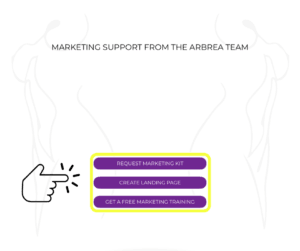
Getting Marketing Support from Arbrea #
- Go to the Marketing Support section in the app.
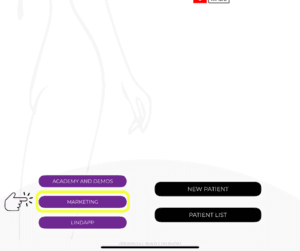
2. Access customizable materials and promotional resources to help you engage with patients.
Accessing Lindapp’s Statistics #
- Navigate to Lindapp’s Statistics in the app.

2. Review patient engagement metrics, consultation history, and more.

Creating a New Patient Case #
Arbrea Suite makes it quick and easy to create a new patient profile:
- Click on Create a New Patient Case.

2. Enter the patient’s details and images (frontal and profile views).
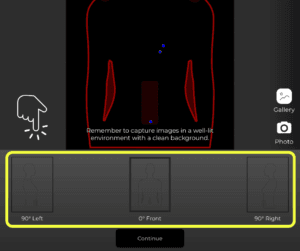
3. Save the case and start simulating procedures in real-time.
Keeping Track of All Patient Cases #
- Open the Patient Case List to view all stored cases.
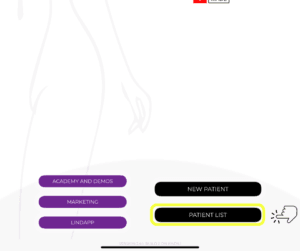
2. Use filters to sort and find cases quickly.

3. Update and track case progress for follow-up consultations.
Syncing All of Your Devices & Sharing Data Between Devices #
- Click the Account tab at the top right corner of Arbrea Suite.

2. Ensure all devices are connected to the same Apple ID and iCloud account.
3. Click the Multi-Device Synchronization in the Account settings.

4. Activate the i-Cloud Synchronization.

Conclusion #
The support and tools in Arbrea Suite streamline consultations with expert guidance, instructional resources, and marketing solutions. By leveraging case management, data synchronization, and hands-on tutorials, surgeons can optimize workflow efficiency and enhance patient engagement for a more seamless pre-operative experience.
For more guidance, watch the full video tutorial below.


Responses