Arbrea Face provides an excellent how to simulate chin procedures, allowing plastic surgeons to accurately analyze, modify, and visualize them in real-time. By exploring different perspectives, angles, and before-and-after comparisons, surgeons can enhance patient consultations and improve pre-operative planning.
Viewing Different Perspectives #
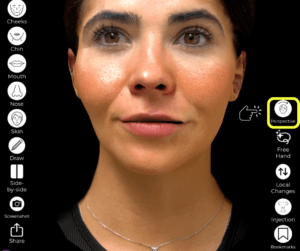
- Open Arbrea Face and select the patient’s case.
- Rotate and zoom in to examine the chin from multiple perspectives.
- Adjust the lighting and angles to get a clear view of the patient’s profile and frontal symmetry.
Why It’s Important?
- Helps in assessing asymmetries and proportions before making modifications.
- Provides a comprehensive understanding of the chin’s structure in relation to other facial features.
Starting the Chin Simulation #
- Click on the Chin Simulation Tool to begin modifications.
- Use the Freehand Tool or predefined adjustments to reshape the chin.
- Modify projection, contour, and volume to achieve the desired result.

Benefit:
- Enables precise, surgeon-controlled adjustments.
- Ensures the modifications align with the patient’s facial harmony.
Analyzing the Chin from Different Angles #
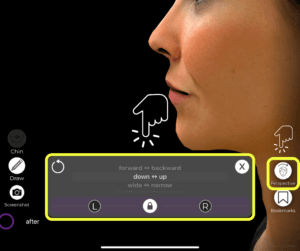
- After making initial changes, rotate the 3D model to check the new proportions.
- Compare frontal, profile, and oblique views to ensure a balanced result.
- Adjust further if necessary to maintain symmetry and natural aesthetics.
Why This Matters?
- Ensures consistent results across different facial angles.
- Helps in predicting the post-surgical appearance with greater accuracy.
Showing Before & After Simulations to the Patient #
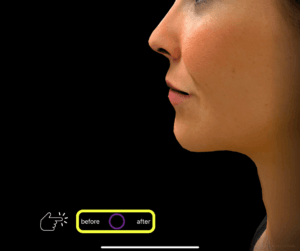
- Click on the Before & After button to toggle between the original and modified chin shape.
- Present side-by-side comparisons for better patient understanding.
- Allow the patient to visualize potential surgical outcomes in real-time.
Advantage:
- Increases patient confidence in the procedure.
- Provides a clear visual reference to support decision-making.
Conclusion #
This how to simulate chin procedures in Arbrea Face simplifies chin augmentation and contouring planning with precise adjustments, real-time modifications, and interactive visualizations. By utilizing different perspectives, before-and-after comparisons, and AI-driven enhancements, surgeons can enhance consultations and achieve accurate pre-operative planning.
For more guidance, watch the full video tutorial below.


Responses