- Accessing the Academy and Demo Resources
- Using the Measurement Tool
- Simulating on Patient Images and Switching to 3D View
- Using the Sculpting Tool
- Accessing the Implant Catalog
- Comparing Implants and Simulations
- Refining the Simulation with the Shape Tool
- Simulating Breast Reduction & Lift
- Sharing the Simulation with the Patient
- Conclusion
[vc_row type=”in_container” full_screen_row_position=”middle” column_margin=”default” column_direction=”default” column_direction_tablet=”default” column_direction_phone=”default” scene_position=”center” text_color=”dark” text_align=”left” row_border_radius=”none” row_border_radius_applies=”bg” overflow=”visible” overlay_strength=”0.3″ gradient_direction=”left_to_right” shape_divider_position=”bottom” bg_image_animation=”none”][vc_column column_padding=”no-extra-padding” column_padding_tablet=”inherit” column_padding_phone=”inherit” column_padding_position=”all” column_element_direction_desktop=”default” column_element_spacing=”default” desktop_text_alignment=”default” tablet_text_alignment=”default” phone_text_alignment=”default” background_color_opacity=”1″ background_hover_color_opacity=”1″ column_backdrop_filter=”none” column_shadow=”none” column_border_radius=”none” column_link_target=”_self” column_position=”default” gradient_direction=”left_to_right” overlay_strength=”0.3″ width=”1/1″ tablet_width_inherit=”default” animation_type=”default” bg_image_animation=”none” border_type=”simple” column_border_width=”none” column_border_style=”solid”][vc_column_text css=”” text_direction=”default”]Arbrea Breast is an all-in-one, AI-powered simulation platform designed to support plastic surgeons throughout the consultation, planning, and communication process. With tools for measurements, implant simulation, sculpting, and real-time adjustments, Arbrea Breast allows you to visualize results on patient images or in 3D, all within seconds.
Accessing the Academy and Demo Resources #
- Begin by exploring the Arbrea Academy tutorials and demo cases available in the app.

2. These resources offer step-by-step guidance to help you become familiar with each feature in the Arbrea Suite.

Why Is It Important?
Gives you a clear learning path and hands-on practice with all the tools.
Using the Measurement Tool #
- Navigate to the Measurement Tool to access automatic breast dimensions.

2. Click again to reveal the calculated breast volume.

This data provides a starting point for simulation and planning.
Simulating on Patient Images and Switching to 3D View #
- You can start simulating directly on the patient’s images (frontal or lateral views).
- Easily switch to the 3D Viewer to provide an interactive perspective.
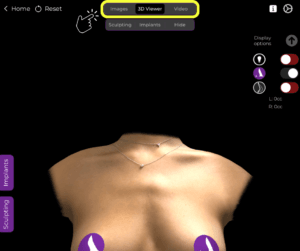
Combine 2D and 3D visualization to enhance patient understanding.
Using the Sculpting Tool #
- In Sculpting Mode, simulate natural breast augmentation without implants.
- Adjust the volume and refine breast shape freely based on patient preferences.

Ideal for simulating fat grafting or non-implant-based enhancements.
Accessing the Implant Catalog #
- Open the Implant Catalog to browse implants from global manufacturers.
- Use filters to sort by diameter, projection, and volume.
- Select the ideal implant for the patient’s anatomy and your surgical plan.
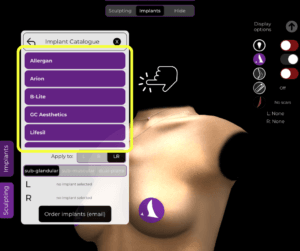
Helps streamline implant selection and improve precision.
Comparing Implants and Simulations #
- Use the Bookmark Tool to save different implant simulations.

2. Compare up to two implants side-by-side or view all simulations at once.

Enables data-driven discussions and better decision-making for patients.
Refining the Simulation with the Shape Tool #
- Open the Shape Tool to simulate lifts, repositioning, and projection changes.
- This tool allows you to adapt the simulation based on your technique, ensuring a realistic visual outcome.
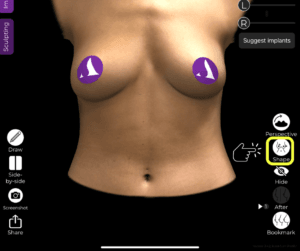
Personalizes the simulation based on your unique surgical approach.
Simulating Breast Reduction & Lift #
- In Reduction Mode, adjust breast volume using intuitive sliders.
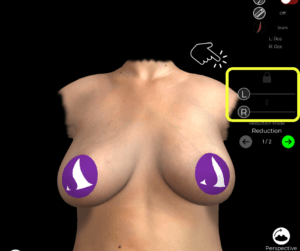
2. View the exact volume being removed with detailed breakdowns.
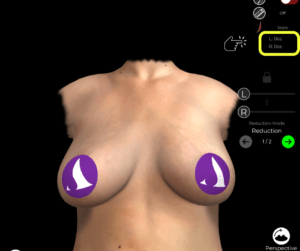
3. Add scar indicators and simulate mastopexy (breast lift) using the Shape Tool.
Helps you communicate surgical impact clearly and accurately.
Sharing the Simulation with the Patient #
Share the final simulation using:
-
- A 3D video of the simulation
- Screenshots of the before-and-after
- Real-time device sharing during the consultation


Improves patient engagement, understanding, and satisfaction.
Conclusion #
Arbrea Breast offers a complete, surgeon-friendly platform for simulating breast procedures in real time. From measurements and sculpting to implant selection, side-by-side comparisons, and personalized refinements, Arbrea empowers plastic surgeons to deliver accurate, interactive, and trustworthy consultations.
For more guidance, watch the full video tutorial below:[/vc_column_text][/vc_column][/vc_row][vc_row type=”in_container” full_screen_row_position=”middle” column_margin=”default” column_direction=”default” column_direction_tablet=”default” column_direction_phone=”default” scene_position=”center” text_color=”dark” text_align=”left” row_border_radius=”none” row_border_radius_applies=”bg” overflow=”visible” overlay_strength=”0.3″ gradient_direction=”left_to_right” shape_divider_position=”bottom” bg_image_animation=”none”][vc_column column_padding=”no-extra-padding” column_padding_tablet=”inherit” column_padding_phone=”inherit” column_padding_position=”all” column_element_direction_desktop=”default” column_element_spacing=”default” desktop_text_alignment=”default” tablet_text_alignment=”default” phone_text_alignment=”default” background_color_opacity=”1″ background_hover_color_opacity=”1″ column_backdrop_filter=”none” column_shadow=”none” column_border_radius=”none” column_link_target=”_self” column_position=”default” gradient_direction=”left_to_right” overlay_strength=”0.3″ width=”1/1″ tablet_width_inherit=”default” animation_type=”default” bg_image_animation=”none” border_type=”simple” column_border_width=”none” column_border_style=”solid”][vc_raw_html css=””]JTVCcHJlc3RvX3BsYXllciUyMGlkJTNENTM1MDQlNUQ=[/vc_raw_html][/vc_column][/vc_row]


Responses