Sharing breast simulation results with patients is a key part of enhancing communication, trust, and consultation quality. Arbrea Breast offers a variety of easy and professional ways to share simulation visuals—including screenshots, 3D videos, and Lindapp integration—so patients can review their options and feel confident in their decisions.
Accessing the Implant Catalog #
-
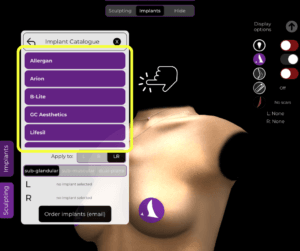
Start by opening the Implant Catalog to select and apply the desired implant.
-
Choose the most suitable implant by filtering by brand, size, projection, or shape.
Why It Matters:
Lays the foundation for a realistic and tailored simulation.
Refining the Simulation with the Shape Tool #
-
Use the Shape Tool to make final adjustments, such as:
-
Lift
-
Cleavage distance
-
Projection and positioning
-
-
Customize the simulation to match your technique and patient expectations.

Helps fine-tune the result before sharing it with the patient.
Taking Screenshots of the Results #
-
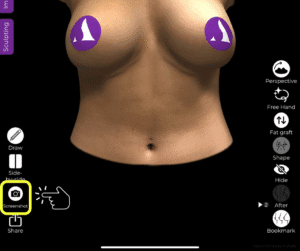
Click the Screenshot button to capture high-quality images of the simulation.
-
You can take:
-
Standard frontal views
-
Different perspectives (profile, angled, etc.)
-
Why It’s Useful:
Screenshots serve as visual references for patient education and follow-up.
Using the Measurement Tool and Volume Analytics #
-
Activate the Measurement Tool to display patient-specific breast metrics.
-
Click again to view volume analytics, showing how the implant has altered volume distribution.

Adds a clinical, data-driven layer to the visuals you’re sharing.
Sharing Screenshots with the Patient #
After taking screenshots:
-
-
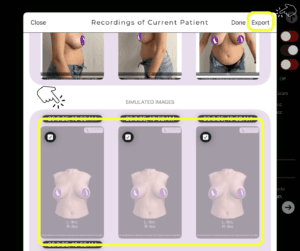
Export them via AirDrop, email, or secure messaging.
-
Use them during consultations or attach to post-consultation follow-up materials.
-
Reinforces the value of the consultation and improves patient recall.
Sharing a 3D Video of the Simulation #
-
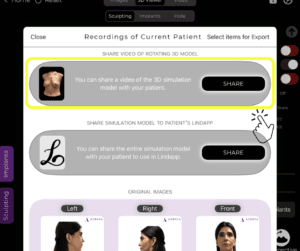
Generate a 3D simulation video directly from the app.
-
This video provides a rotating view of the simulation, giving the patient a comprehensive look.
Offers a more immersive and engaging experience than static images.
Sharing the Simulation via Lindapp (Optional) #
-
If you’re a Lindapp user, you can send the simulation to the patient via their personal Lindapp link.
-
Patients can view their 3D simulation and other consultation content anytime, anywhere.
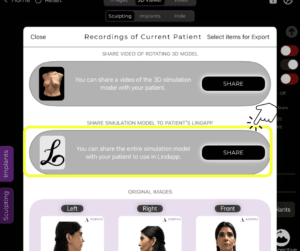
Ideal for remote consultations, pre-visit prep, or follow-up communication.
Conclusion #
Arbrea Breast makes it easy and professional to share breast simulation results with your patients through screenshots, videos, and Lindapp links. These tools not only improve patient understanding and satisfaction but also reinforce your clinic’s high-tech, patient-focused approach.
For more guidance, watch the full video tutorial below.


Responses