Simulating a tuberous breast correction requires careful consideration of breast asymmetry, volume differences, and surgical planning. Arbrea Breast offers a complete workflow to support this, allowing surgeons to visualize correction steps such as volume reduction, implant placement, shape refinement, NAC repositioning, and scar simulation—all with real-time feedback.
Using the Measurements Tool #
-
Open the Measurements Tool to analyze:
-
Base width
-
Breast projection
-
Asymmetries and volume discrepancies
-
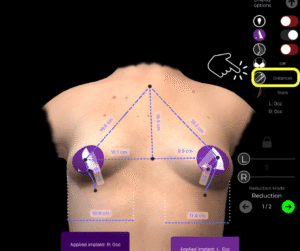
2. Click again to access volume analytics, which are automatically calculated by the system.
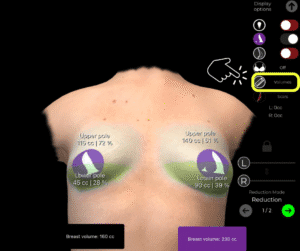
Why It’s Important:
Gives a clear overview of structural differences in tuberous breast cases and serves as the baseline for planning.
Reducing Volume in One Breast #
-
If one breast has significantly more volume, go to Reduction Mode.
-
Unlock the symmetry to reduce only one breast independently.
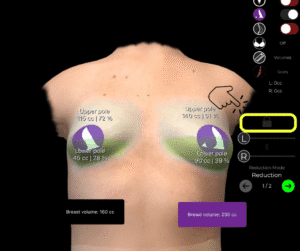
3. Use the sliders to fine-tune the reduction.
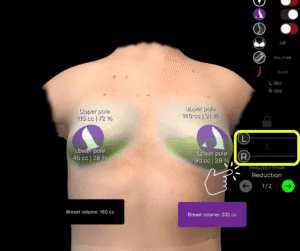
Helps simulate corrective surgery and volume balancing for asymmetrical cases.
Choosing an Implant from the Catalog #
-
After going to the Augmentation Mode, open the Implant Catalog to select an appropriate implant.
-
Filter by brand, shape, projection, and diameter.
-
Apply the implant to one or both breasts depending on the correction needed.
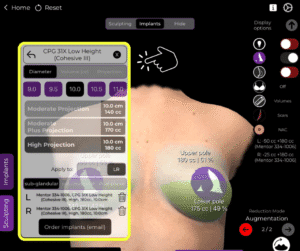
Adds structure and support, which is key in tuberous breast reconstruction.
Refining the Simulation with the Shape Tool #
-
Use the Shape Tool to adjust the overall appearance, including:
-
Vertical lift
-
Base width expansion
-
Lower pole shaping
-
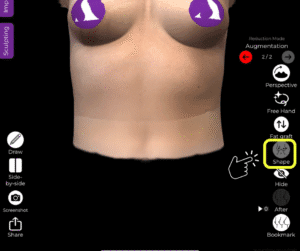
2. Modify projection and placement to simulate the final desired outcome.
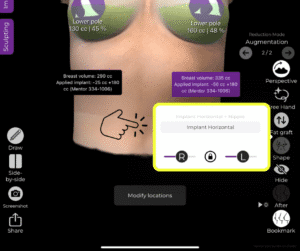
Allows surgeons to visualize the aesthetic corrections in detail.
Using the NAC (Nipple Areola Complex) Tool #
-
Open the NAC Tool to reposition or resize the nipple-areola complex.
-
Define both the source (current position) and target (new, surgically planned position).
-
Adjust size for a symmetrical and proportional look.
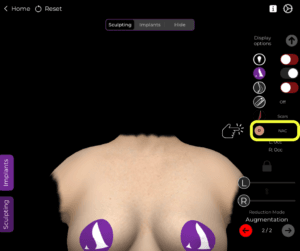
Essential in tuberous breast correction, where areola positioning often needs adjustment.
Using the Scars Tool #
-
Activate the Scars Tool to show expected scar patterns.
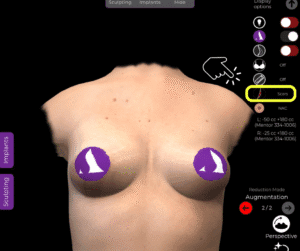
2. Choose from periareolar, vertical (lollipop), or inverted T (anchor) scar types.
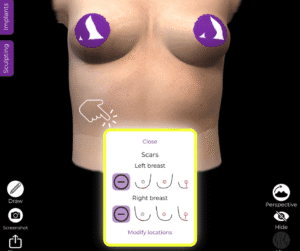
Helps patients understand the extent and location of post-surgical scars.
Saving and Comparing with the Bookmark Tool #
-
Use the Bookmark Tool to save different versions of the simulation.
-
You can create bookmarks to compare:
-
Different implant sizes
-
Before vs. after reduction
-
Shape refinements
-
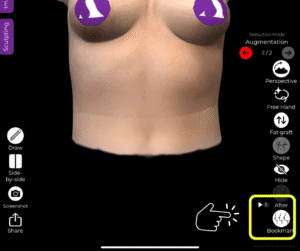
Makes it easier to present multiple options and guide patient decisions.
Conclusion #
Simulating a tuberous breast correction with Arbrea Breast is precise and comprehensive. From analyzing asymmetries and adjusting volumes, to choosing implants, refining the shape, and visualizing scars, the platform equips surgeons with the tools needed for accurate planning and effective patient consultations.
For more guidance, watch the full video tutorial below.


Responses